Redaction labels can be created and managed in the Redactions tab via My Projects > [your project] >  Project Settings > Redactions.
.png)
Create redaction labels
Click +Create new reaction label.
Fill out the Create Redaction Label popup.
Label Name: The name of your label. This name will populate the text shown on top of your redaction
Description: A description of your label, why the content is being redacted.
Click Create Label.
Labels you create will be labeled with a “Custom” source.
Additional Actions
You can also perform the following actions in the redaction labels table:
Edit redaction labels
Delete redaction labels
Edit redaction labels
On the same row as the redaction label, click the
 ellipsis icon.
Click Edit.
In the Edit Redaction Label popup, adjust fields as needed according to the Create redaction labels section.
Click Save.
Note
Editing a redaction label will dynamically update all prior redactions that have applied that same label.
Delete redaction labels
On the same row as the redaction label, click the
ellipsis icon.Click Delete.
A Delete Redaction Label popup will appear. Click Delete.
Warning
Deleting a redaction label will remove that label from all redactions that have applied that label. The redaction box itself will remain, but the label will disappear.
Import redaction labels
Logikcull includes pre-loaded redaction labels of common laws in the US, UK, and Netherlands, so you can import redaction label sets directly into your project.
To import redaction labels:
Click Import from Standard Library.
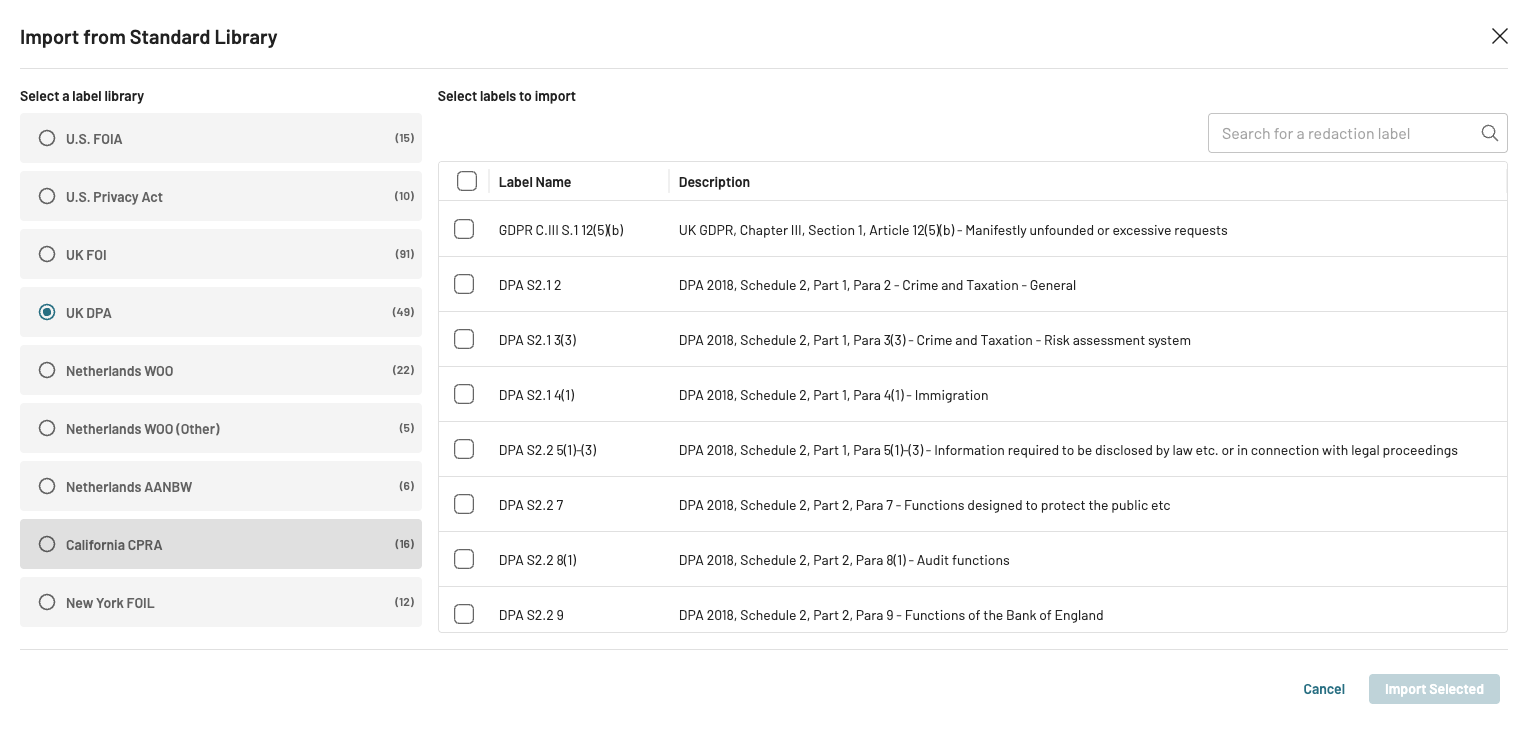
Choose your label set under Select a label library.
Use the checkbox to select which labels you want to import. To select all labels at once, click the checkbox at the top of the list.
Click Import Selected to add the redaction labels to your project.