Logikcull’s Search History log makes it easy to audit the searches performed within your projects. You can access the Search History log by navigating to .png) Project Settings > Search History.
Project Settings > Search History.
.png)
The log itself is filterable by users and date ranges via the User dropdown or Start Date / End Date fields, and can be searched using keywords from the search query itself.
Clicking  Download CSV will export the contents of your Search History log to a spreadsheet file. Filters can be applied beforehand so that you’re exporting only the information you’re interested in auditing.
How entries are logged
Each entry represents a filter applied or removed through the Filter Carousel, a search performed in the Search screen, a re-executed saved search, or a bulk action. Only searches made on or after 9/28/2026 (the date the Search History log was implemented) are captured in the table.
Similar to a locked search, search entry records will not change after they are logged, even if the search results change due to added, culled, or newly tagged documents. Re-running the same search from the search log may display different results than the number displayed in the “Results” column of the log.
Search Execution Details popup
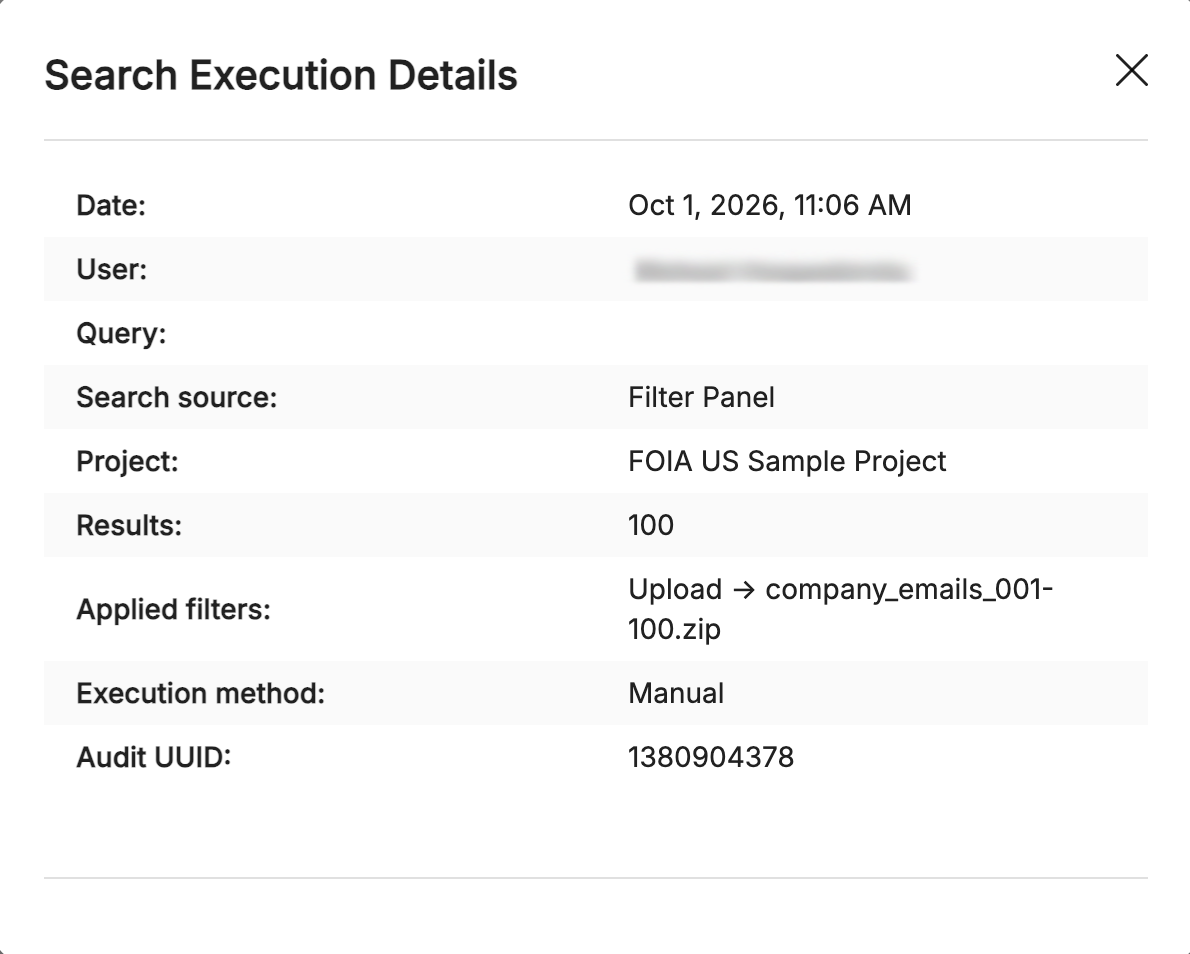
Click an entry to open up its Search Execution Details popup, which displays all the information about each search, including the columns in the Search History log.
.png)
The below table lists each logged data point and its description.
Data | Description |
|---|---|
Date | The date and time the search was executed. |
User | The person who ran the search. |
Search | The entire search represented as a single query, including filters added in the Filter Carousel. You can copy the search query and paste it into your search bar to re-execute the search. Re-executing searches may produce a different number of results than what was logged in the table. See the Blank search queries section for searches that show asterisks ( * ) or dashes ( – ). |
Search source | Where the search was performed:
|
Project | The project the search was executed in. |
Results | The number of results in the search at the time it was run. |
Applied filters | The filters used in the search, shown when the search can't be written as a query. |
Execution method | The type of search performed:
|
Audit UUID | A random, unique numerical ID given to each log entry. |
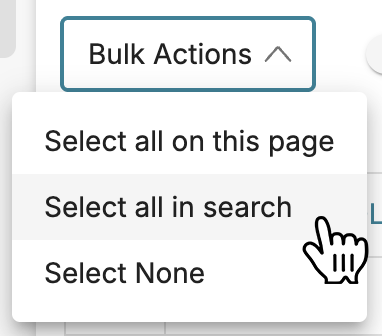
Blank search queries

Certain searches cannot be represented as a search query and contain placeholder symbols in the Search column.
Searches with an asterisk
Searches with an asterisk ( * ) are “match everything” searches where no keywords or filters are used, so all documents in the project are returned. This happens when users clear the search bar or remove all the checked filters in the Filter Carousel.
Searches with a dash
Searches with a dash ( – ) are searches that the log cannot write out in search syntax. There is no query that can be copied and pasted back into the search bar.
Dashes will appear in the Search History log if the search is comprised of any of the following:
A filter by upload, download name, authorized users, or suggested tags (these store internal IDs that aren’t compatible when pasted into search syntax).
A scoped search, such as a search limited to a review set or one started from an Ask AI question.
A company filter set to "No company name".
More than 200 filter values in total.
However, you can still see the filters used by opening the search execution details if you want to recreate the search manually, shown below.