Text sets are administered in Review Manager under Project Setup > Text Sets. You can choose which text sets to import and index during document import (see our Third-Party Data Loads article).
.png)
Text sets can also be created in Reveal Web during OCR, Translate, or Transcribe jobs. See Create Text Sets – Web for more information.
Create a custom text set
Important
Since each text set must be mapped to a field, you’ll first need to make a custom field before creating your text set (see our Third-Party Data Loads – Review Manager article for further instructions).
Navigate to Project Setup > Text Sets.
Click New (to the right of the Text Sets table).
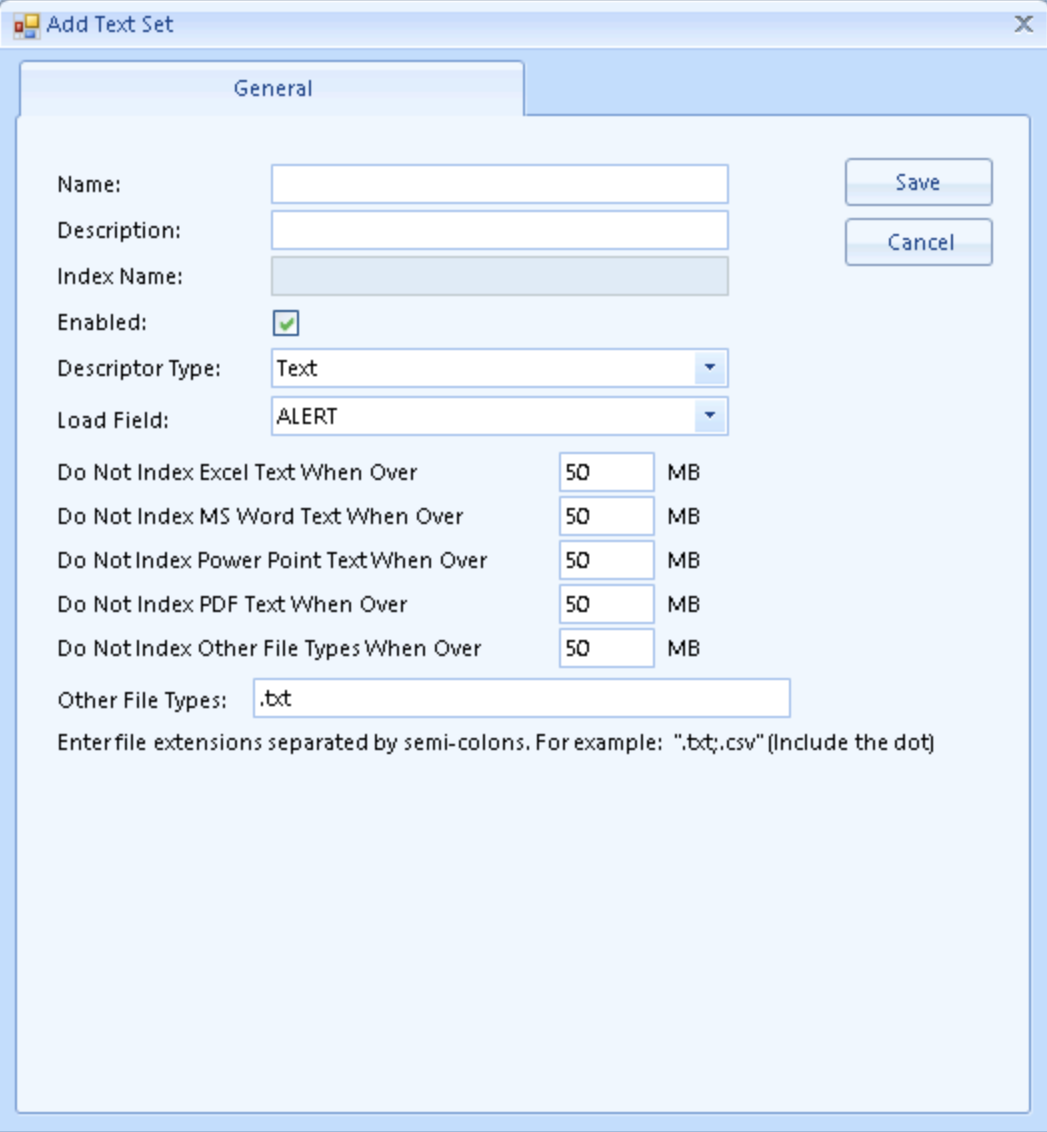
In the Add Text Set modal:
Name: How the text set will be referenced in Reveal in areas such as indexing, searching, and during review. The name should readily identify the origin or character of the documents to be included in the text set (e.g. Native View (PDF) - Redacted).
Description: Information about the origin or purpose of the text set.
Index Name: The name that’s added once the new text set is created and indexed.
Enabled: Controls whether the text set is visible (enabled) or invisible to users. Invisible text sets can be populated with text but will not show up in Document Viewer.
Descriptor Type: Identifies the kind of text in the set.
Text – Extracted or OCR text set.
HTML – Native, coded text set.
AV_Transcribe – Audio / Visual Transcription text set.
Native_View – Near-native PDF rendering or audio/video player indexing.
Spreadsheet_View – Near-native view of spreadsheet files.
Load Field: The field used to link text or native paths for indexing. This should be the custom field you created for the specific text set.
Size limits: Control the various indexing size limits on a text set level, instead of across an entire case. You can edit the following text set size limits:
Excel Text
MS Word Text
Power Point Text
PDF Text
Other file types
Important
Before changing the default values for these fields, please read Large Text Indexing or email Reveal Support.
Other File Types: Formats other the the primary file type(s) referenced by the text set may be specified, separated by semi-colons. Include the dot when listing the file types, e.g.
.txt;.csv;.mp4
Click Save to create the new text set.
After you create your text set, it can be chosen when indexing imported documents.