Review Manager has various ways of monitoring your Index jobs, including:
Watching an Index job in real-time in the Status tab.
Checking indexing successes and failures in the Index Errors log.
Viewing overall Index job details in the View Health tab.
Status tab
The Status tab can be found under Create > Indexes in Review Manager, and lists key information about your Index job. Two columns, Progress and Warnings, provide numerical data about your job.
.png)
Progress column
Metric | Description |
|---|---|
Total Documents | All documents to be attempted to be indexed in the current job. This is scoped by the data sets or DocID list that is selected. |
Completed | Documents that were attempted to be indexed in the current job.
|
Successful | Documents that were successfully indexed in the current job. |
Remaining | Documents to be attempted to be indexed in the current job. |
Skipped | When running an “Unindexed and Error” or “Non-Error” index job, unindexable files will get skipped (e.g. empty source files).
|
Not Defined | The path to the OCR or native is missing. |
Retries | Indexing process was re-attempted on a document. Typically happens if an attempt to index a document times out. |
Warnings column
The warnings column displays common indexing errors, and tracks how many documents have that error.
Metric | Description |
|---|---|
Missing | The native was not found. |
Too Large | The file is larger than the size limits set within the Text Set settings. It’s recommended to download and view these files natively. |
Empty Source | The file is empty, so it has no content to extract or convert. |
Not Supported | Error when extracting text and creating html from an unsupported file type. |
Convert* Failures | Error when extracting text and creating html from the native. These are typically corrupt or encrypted files. |
Convert* Empty | Conversion of native was successful but there was no output text. |
Insert Failures | There was a failure when attempting to add the document’s text to the Elastic Index. |
* “Convert” is the process of extracting text and rendering html from the native.
Error log
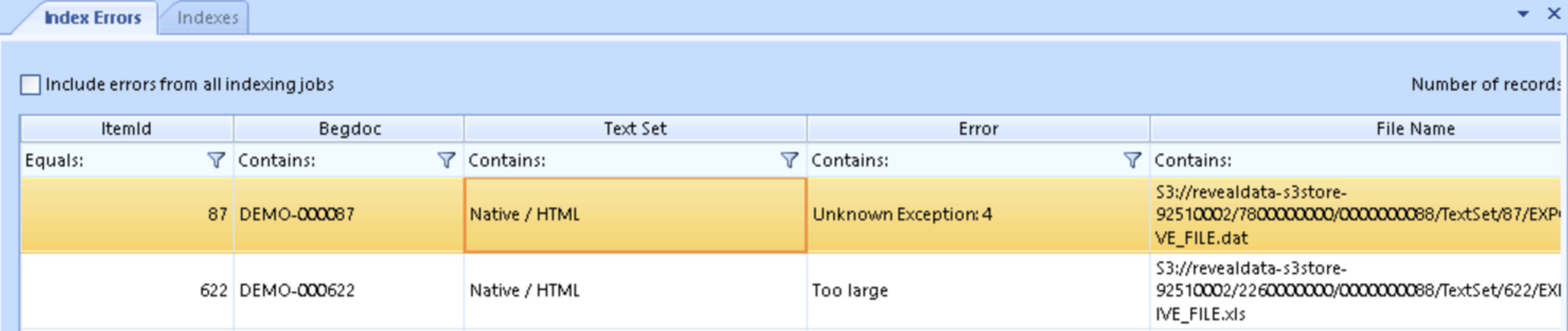
To examine the indexing log for the current or previous jobs in a project, click Create > Indexes > View log. This will open up the Index Errors tab. The log displays which document text sets errored during indexing.
Note
For a list of common errors and their descriptions, see Indexing Errors.
Health information
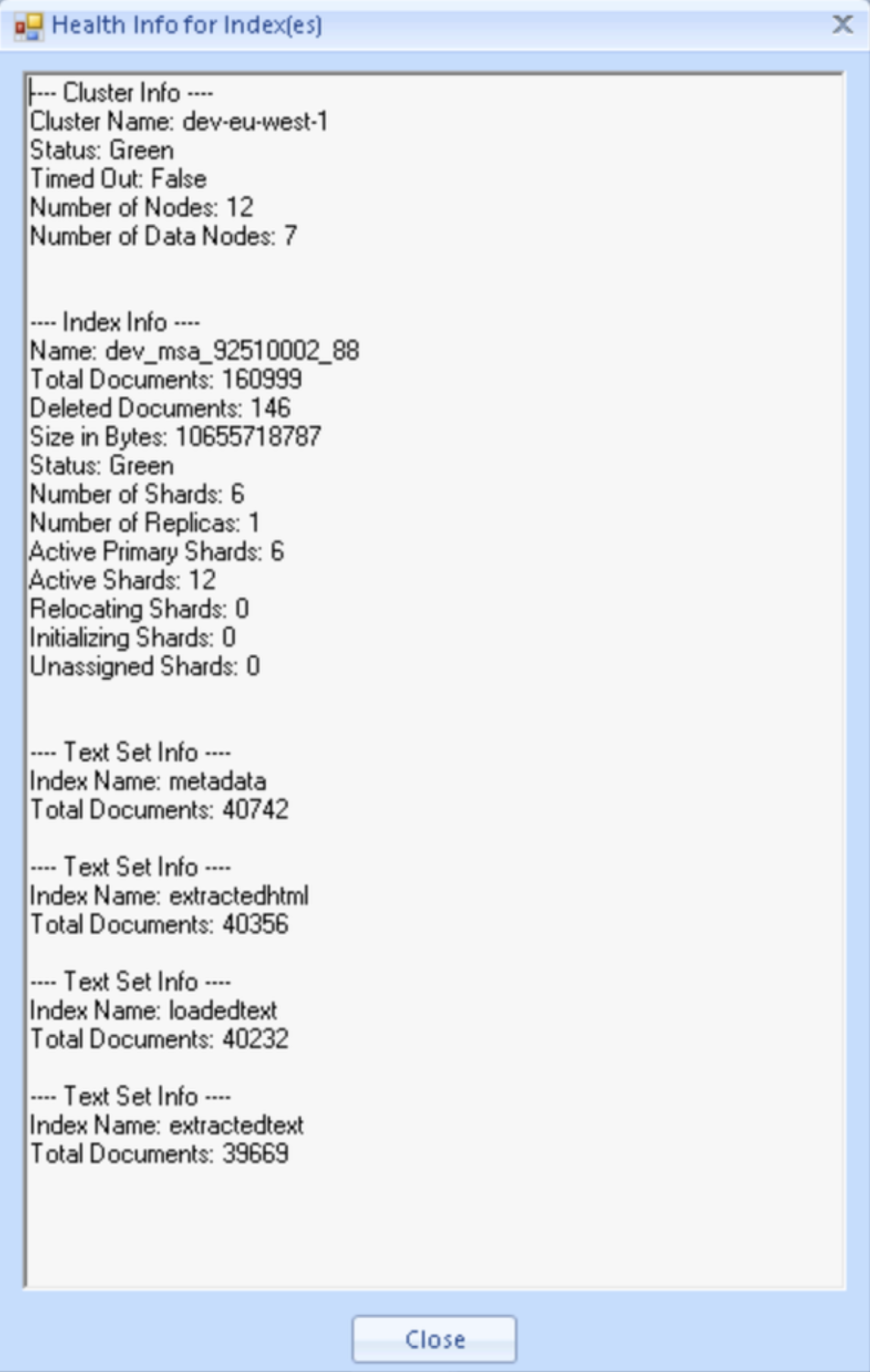
To get information about the health your Index job(s), click View Health. The report window will provide details about the index, including the text sets indexed and their counts.
Reconnect to an Index job
If Review Manager is closed during an Index job, the job will still continue to run. You can always return to Review Manager and reconnect to a currently running job or an already completed job.
You can reconnect to an Index job through the Create > Indexes page.
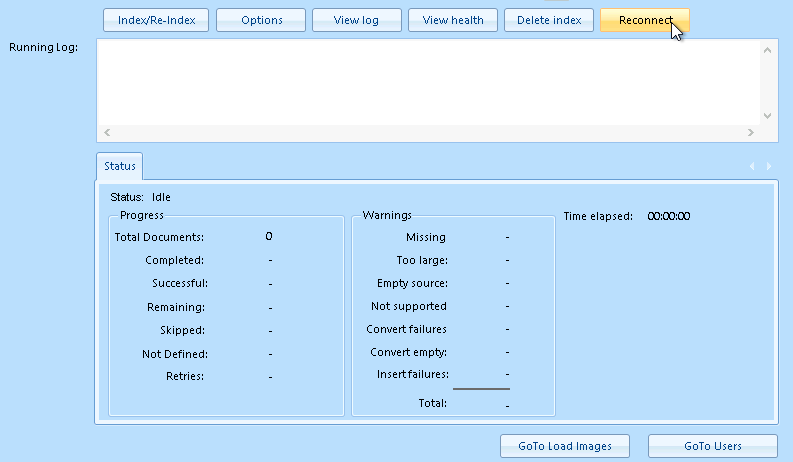
Click Reconnect.
Select the job to reconnect from the list.
To see jobs that have already been completed, select the Include completed jobs checkbox. This will show both running and completed jobs in the list.
Click Reconnect to Selected.
Your screen will update to reflect the information related to your chosen Index job. For a job that’s currently running, you can continue to monitor the progress of the job through the Status tab and Running Log.