Notice
You must verify that the Translation service is available within your AWS region. Please use the following link to verify service availability: Translation - click this link to verify: Region Availability
You can use Reveal to translate your document text from one language to another.
Create a Translation Job
Select documents in the Review Grid.
Choose which files you want to translate using the check marks to the left of the grid.
You can leverage the “Detected Languages” search field to filter documents by a certain foreign language.
In the grid toolbar (blue), click Translate.
The Translate Documents modal will appear.
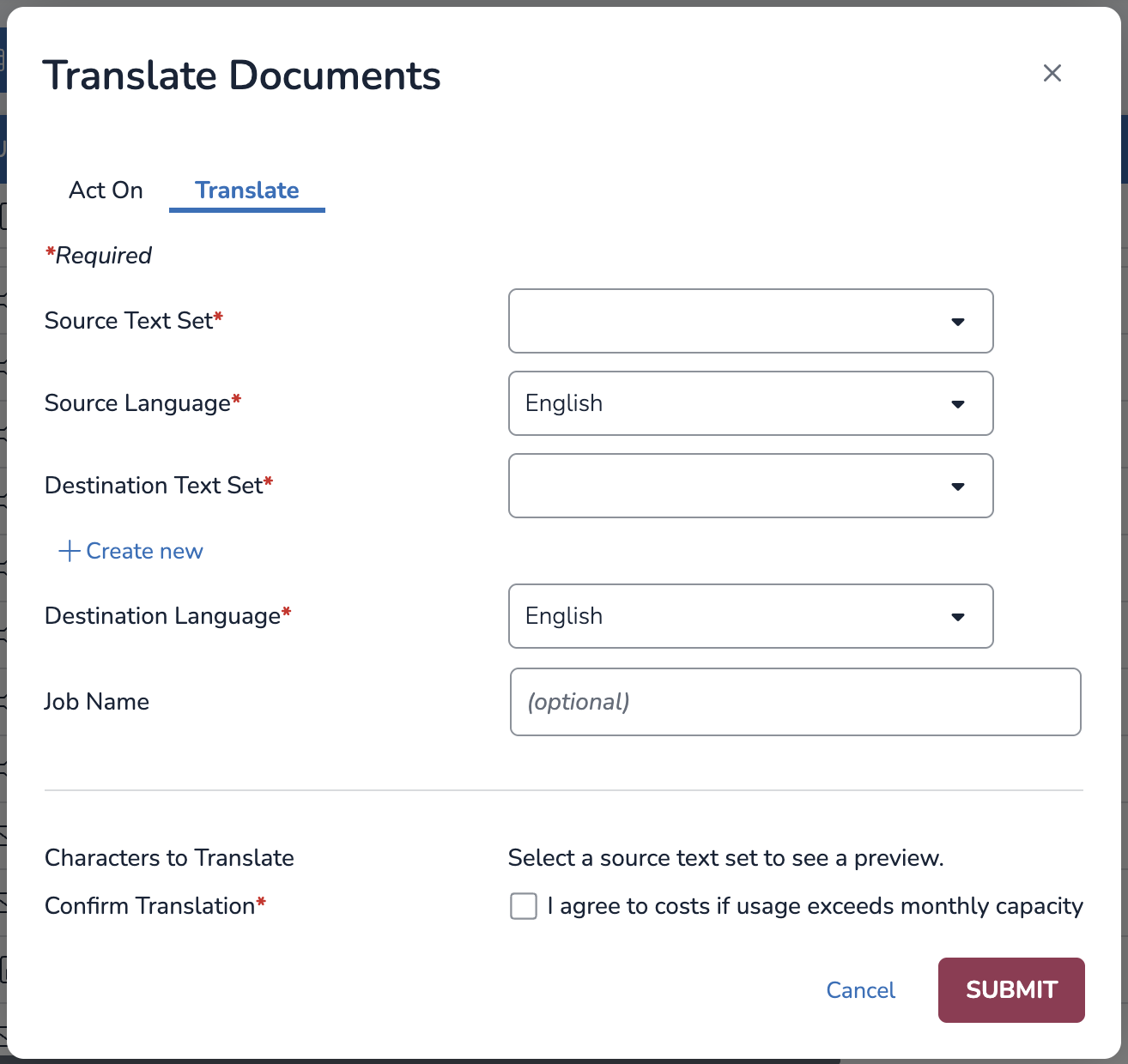
In the Act On tab: “Select documents” will be chosen by default. Click “All documents in results list” if you need to translate all documents that currently show in the Processing Grid.
In the Translate tab:
Select a Source Text Set (usually Extracted Text or OCR/Loaded). This is the text container that Reveal references during the translation job.
Important
Translation jobs will fail on the Native/HTML text set unless the document is a text file.
Select a Source Language — the original language of the document.
Note
You can only translate one language at a time. If a document is written in more than one foreign language, you will have to run a Translate job multiple times for that document.
Select a Destination Text Set (usually Translated). This is the type of text set which the translated text will be stored post-job. Alternatively, you can select + Create new text set (e.g., “Translated from Spanish”.) See Create Document Text Set for further instructions.
Select a Destination Language. This will be the new, translated language of your text.
Type a Job Name.
View the number of Characters to Translate.
Check the Confirm Translation box to acknowledge that you agree to the costs if usage exceeds monthly capacity.
Press SUBMIT.
View Translation Jobs
Submitted translation jobs are listed in Jobs > Review Jobs column > Translation. After a translation job is complete, you can view and search these documents using both the source text and/or the translated text.
Jobs that are in progress will display a rotating green gear to the very right under “Status,” which will change into a green check mark upon completion. Click the rotating green gear to open a dropdown menu with the following options:
Delete: Removes the translation job and its associated data.
Stop: Terminate a Translation job that is currently in progress. Billing metrics will reflect up to the stoppage.
When clicking the green checkmark after the Translation job is finished, you have the option to:
Delete: Remove the translation job from the list and its data.
View Errors: See Files that could not be translated, and the reason for each error.
Summary Report: See all documents that ran through the translation job.