Teams are separate from roles and role groups, but allow extra control over what content – like tags profiles, wordlists, documents, or fields – are visible to users.
A user isn’t required to be a part of a team, but leveraging teams makes it significantly easier for admins to bulk-assign documents and edit user viewing settings. A single user can also be a part of multiple teams.
Teams are managed in the Teams page by navigating to Project Admin > Teams + Roles > Teams page from the project navigation sidebar.
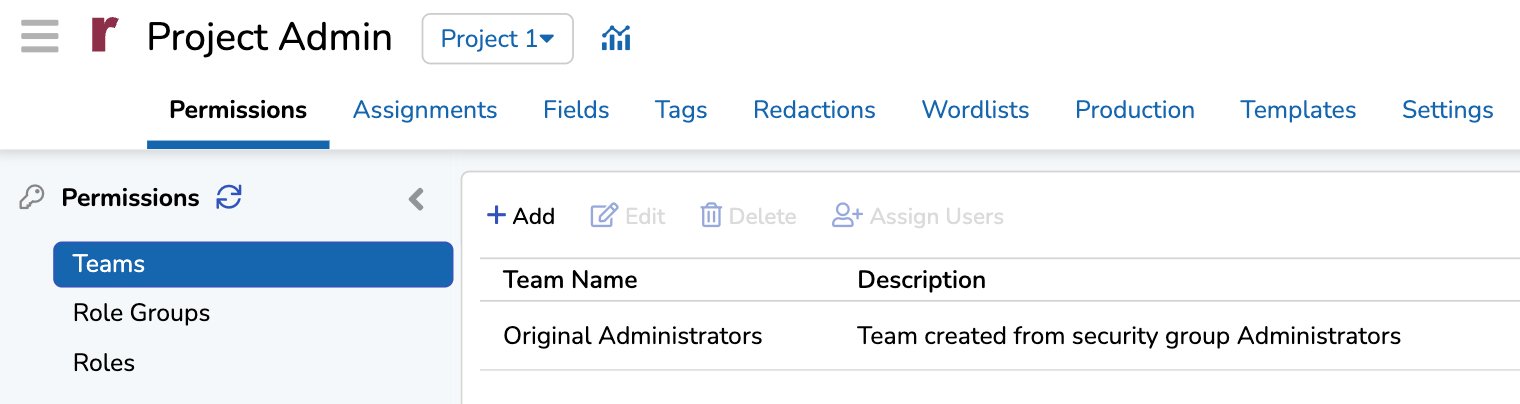
From the Teams page, Project, Company, and Instance Admins can add, edit, or delete teams, and assign users to teams. Once a team is created, it can be used to perform the following bulk options:
Assign documents.
Assign tag profiles.
Assign field profiles.
Assign search profiles.
Define work folder access.
For information about how teams function in Reveal, see About Permissions.
Create teams
From the Teams page:
Click
 Add.
Add. In the Add Team modal:
Team Name: Name your team. This field is required.
Description: Describe the functionality or kinds of users in your team, if needed. This description is only visible within the Teams page.
Click ADD to create your team.
Assign users to teams
From the Teams page:
Click the team you want to assign users to. Its row will highlight in blue.
Click
 Assign Users. The Assign Users modal will appear, listing individual users by name and username (in parentheses) and their associated Role Group.
.png)
Fill out the Assign Users modal.
Click the
.png) checkbox to assign or unassign a user to the team.
checkbox to assign or unassign a user to the team.Next to the Name column, you can click the
checkbox to select all users from the list.
Click ASSIGN to populate your team.
If you want to modify which users belong to your team, return to the Assign Users modal and change your preferences.
Important
Users added to an existing team will inherit any profiles and views already assigned to the team. The user may need to refresh the page or log back in to the system to see their new profiles and views.
Managing teams
Team management is performed in the the Teams page. Here, you can:
Edit teams
Delete teams
Edit teams
Editing a team allows you to change its team name or description. If you would like to change which users belong to a team, follow the instructions in the Assign users to teams section.
Click your team from the list. Its row will highlight in blue.
Click
.png) Edit.
Edit.Edit the fields as needed. See the Create teams section for a description of each field.
Click EDIT to save your changes.
Delete teams
Click your team from the list. Its row will highlight in blue.
Click
.png) Delete.
Delete.A confirmation modal will appear. Click OK to delete the team.
Important
Reveal will let you delete a team even if users still belong to that team.