Permissions Categories
Reveal has various permission categories that help administrators sort and manage user permissions at scale within Reveal. At the most basic level, each individual account represents a user in the Reveal platform. Users can be sorted further into roles and role groups (which define a user’s permissions), and teams (which defines content that is visible to the user).
Users
Users are individual accounts in your instance which can be granted access to different projects, areas, and permissions within Reveal. In general:
Users must be added to projects in order to have access to them.
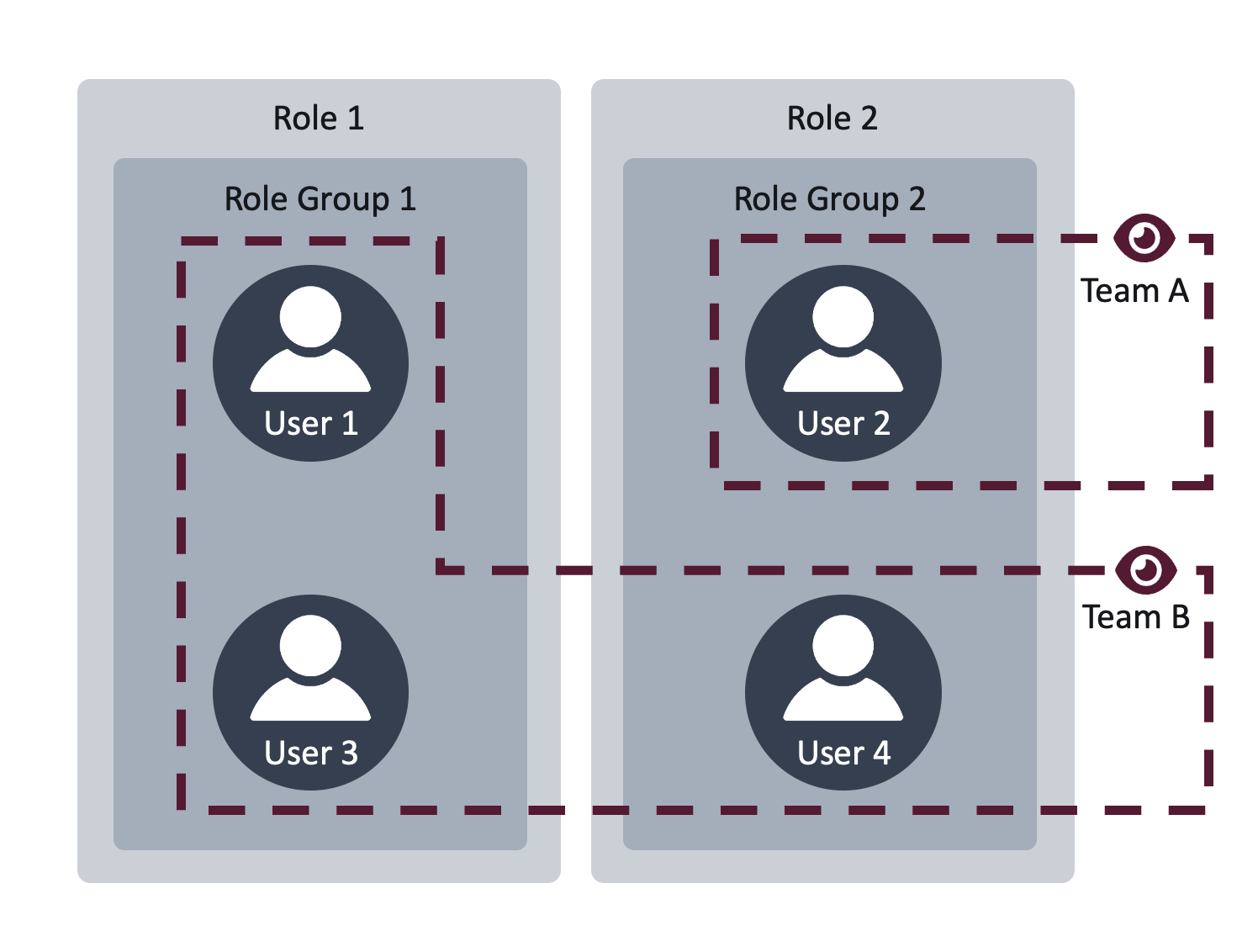
Users are mapped to a role group and a role, which defines a user’s permissions.
Users are mapped to teams, which define user’s visibility of content in a project.
Roles and role groups
Roles allow you to enable or disable specific permissions that can be exercised in a project, and also limit access to unauthorized areas in the Reveal environment. Role groups map the user to the specific role.
Each Reveal user is required to be a part of a role group.
Role groups are assigned a role, which provide the users in that group with their permissions.
There is a one-to-one association between a role and its role group.
There are five default roles and role groups in Reveal, but admins can create their own roles customized according to the specific needs of your project.
Role | Role Group | Description |
|---|---|---|
Administrator | Administrators | All permissions, including deleting documents and assigning or managing user permissions.
|
Client Administrator | Client Administrators | All permissions, except those related to managing user permissions and deleting documents. |
Power Reviewer | Power Reviewers | Reviewer permissions, plus all documents view, my views, quick entities, power search, bulk tagging, and public item management. |
Processing User | Processing Users | Permission to upload data, view processing, and process data. |
Reviewer | Reviewers | Basic reviewer options, plus redaction, and bulk tagging of related documents. |
Each role has its own set of default permissions, which can be edited if needed. See Permissions Matrix (Default) for a list on each role and its assigned permissions.
Teams
Teams are separate from roles and role groups, but allow extra control over what content – like tag profiles, redaction profiles, wordlists, documents, or fields – are visible to users.
Multiple users are grouped together into a team, independent of their role or role group.
Wordlists, tag profiles, field profiles, and more can be assigned to either individual users, collective teams, or a combination of users and teams.
Each project has one default team. Admins can create their own new teams for increased control over user visibility.
Team | Description |
|---|---|
Original Administrators | Team created from security group Administrators. |
Note
It’s recommended to create your own teams outside the default so you can bulk assign documents and toggle profile visibility across multiple users at once.
Permissions diagram
The below diagram illustrates the relationship between users, roles, and role groups, and the separate independent relationship users can have to their teams.
Permissions tab
The Permissions tab, accessed in your project through Project Admin > Teams + Roles > Permissions, is where the majority of permission-related actions take place. The Permissions tab will open up in its own browser window.
.png)
The Teams page lets you add, edit, or delete teams, and assign users to teams.
The Role Groups page lets you add, edit, or delete role groups, assign users to role groups, and assign role groups to roles.
The Roles page lets you add, edit, or delete roles, and assign permissions to roles.
Users are created and managed in the Users area. For more information, see Manage Users – Web.
Non-configurable permissions
Reveal’s five default roles – Project Admins, Client Admins, Power Reviewers, Processing Users, and Reviewers – can have their permissions configured to match the needs of your project. Or, you can create new roles with your own unique permissions.
Outside of roles, there are two additional permission levels that can be granted to a user – Instance Administrators and Company Administrators – but these permission levels are non-configurable and assigned in the Users area instead of the Permissions tab. For more information, see Assign Permissions.
Instance Administrator permissions
Instance Administrators have access to all companies and projects, and can access the Companies, Processing, Users, System Configuration, Stats, Activity, and Allocation areas through the Switcher and Home page.
Instance Admins, like Project Admins, have all project-level permissions, including assigning / managing user permissions and deleting documents.
Company Administrator permissions
Company Administrators have access to the Companies area and Processing area through Reveal’s Switcher and Home page, in addition to all projects within their assigned companies. For Company Admins, the Companies and Processing areas will only display information related to the companies they are assigned to.
Company Admins, like Project Admins, have all project-level permissions, including assigning / managing user permissions and deleting documents.
Permissions Workflow
Workflow
A typical workflow for assigning permissions follows the below four steps:
Create Users: Add users to your instance, then assign them to projects.
Create Roles: Create your own roles and assign permissions, if you would like to alter Reveal’s defaults.
Create Role Groups: Create your own role groups, assign role groups to their respective roles, and assign users to role groups. If you choose to add new roles to your project, you must also create role groups for those roles.
Create Teams: Create your own teams and assign users to teams.
Reference Links
For each step, you can reference the below articles:
I. Create Users
Manage Users – Web: Outlines how to create and manage users in the web environment.
II. Create Roles
Manage Roles: Outlines how to create and manage roles outside of Reveal’s defaults, and how to and assign users to roles.
Assign Permissions: Outlines how to assign permissions to a role.
Permissions Matrix (Default): Reference tables that show Reveal’s default permissions assigned to each role type.
III. Create Role Groups
Manage Role Groups: Outlines how to create role groups, assign role groups to their respective roles, and assign users to role groups.
IV. Create Teams
Manage Teams: Outlines how to create and manage teams, and assign users to teams.