Updates in feature releases, product improvements, and bug fixes.
Auto-redactions
Auto-redactions automatically apply redaction labels to PII, keywords, or regular expressions in order to streamline your redaction workflows. Once added to the table and set to enabled, auto-redactions will be implemented upon opening a document and be labeled with the redaction code and color of your choice.
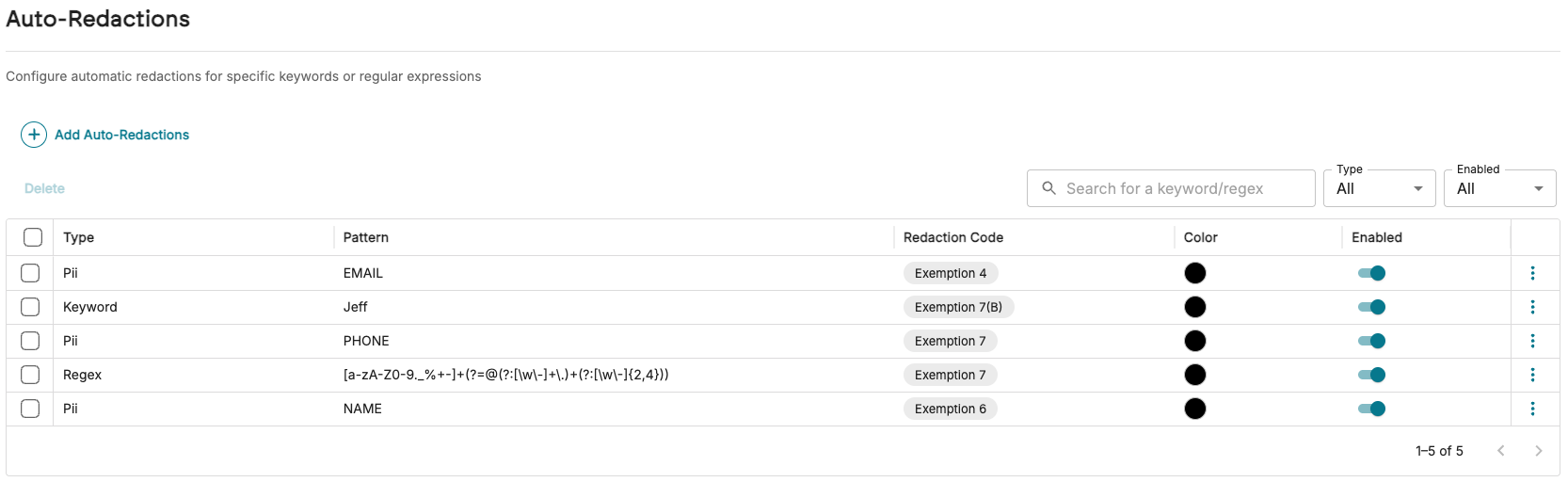
Documents that have been auto-redacted will receive the tag  so that auto-redactions are not reapplied each time the document is subsequently opened.
Learn more: Manage Auto-Redactions
Redaction audit log
From the Document Viewer side panel, under the Redactions section, hover over the.png) ellipsis icon and click View Redaction Audit to see an audit log of redactions applied to the document you are currently viewing.
ellipsis icon and click View Redaction Audit to see an audit log of redactions applied to the document you are currently viewing.
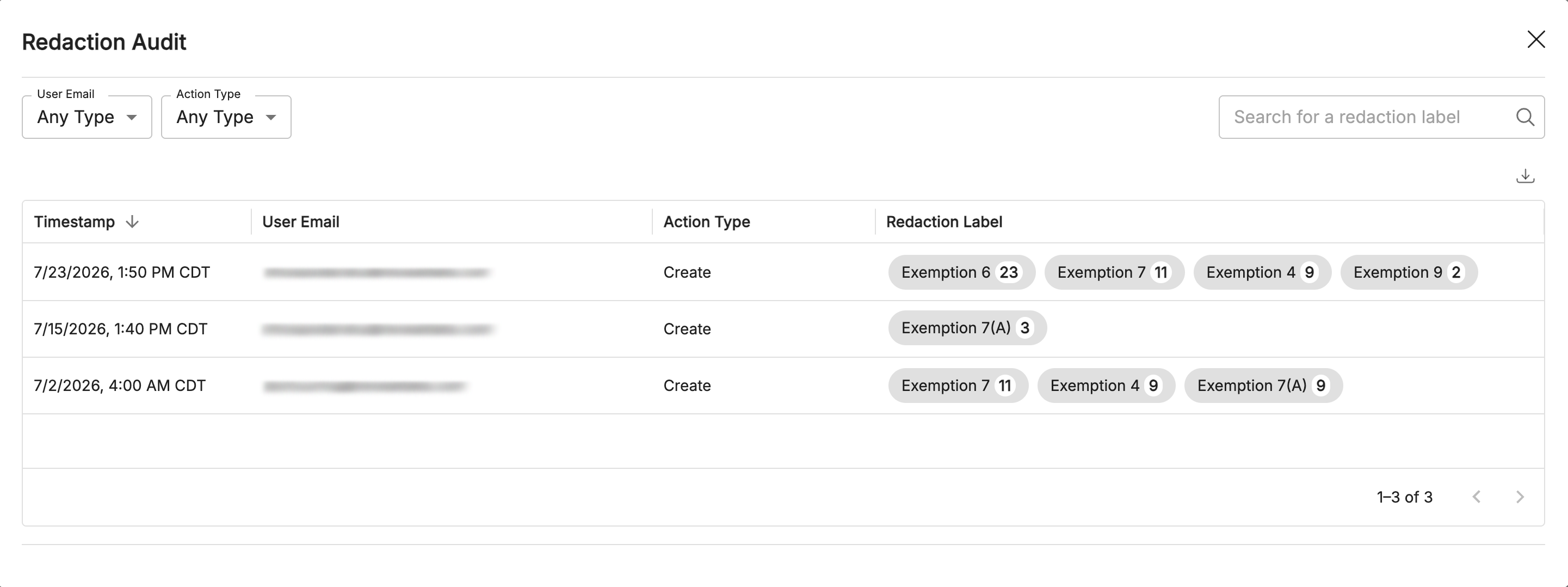
The Redaction Audit log provides traceability of added and deleted redactions to assess review patterns by user.
Learn more: Redaction Audit Log
Transparent redactions
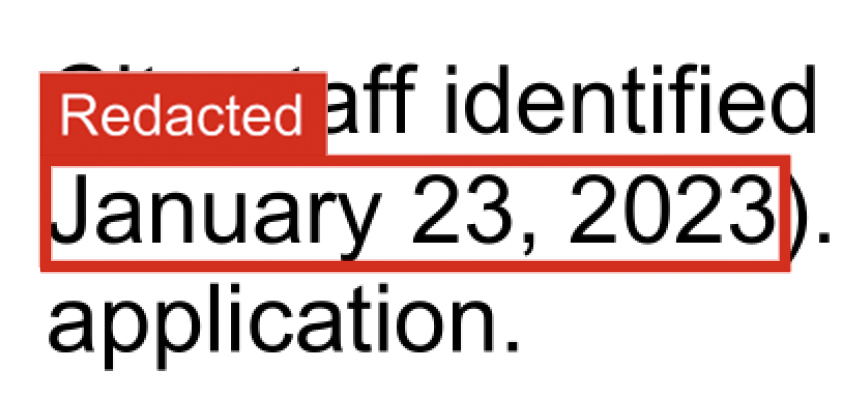
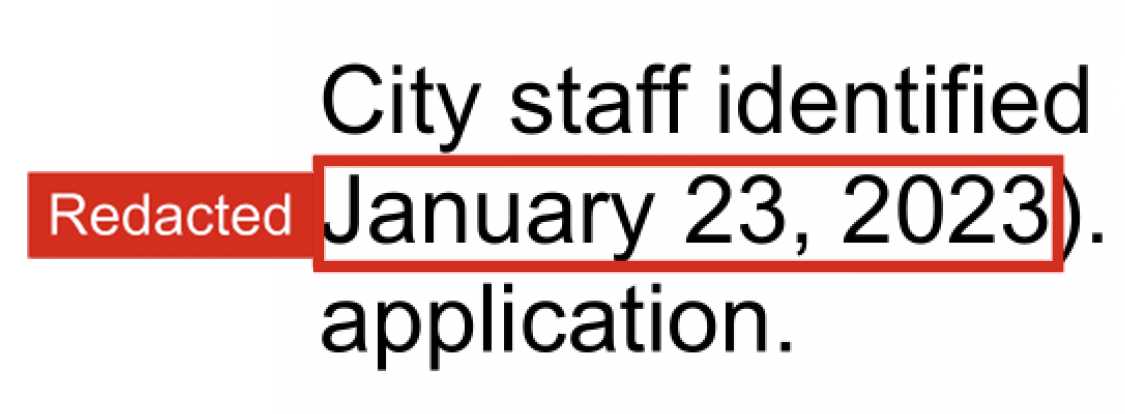
When downloading your search results as a PDF or creating a download, you can opt for transparent redactions, which will create a red box around redacted content while still showing the content underneath. These transparent redactions can be used for judicial review, privilege challenges, and internal validation workflows where reviewers must see the underlying text structure without revealing content.
Transparent redactions can be displayed in three different ways:
Type | Appearance |
|---|---|
No redaction labels visible |
|
Redaction labels above the redaction |
|
Redaction labels to the left of the redaction |
|
.png)
Learn more: Bulk Download to PDF, Download Productions
Multiple redaction labels
Redactions now support multiple redaction labels at once. When applying a redaction label, simply check multiple labels from the popup.
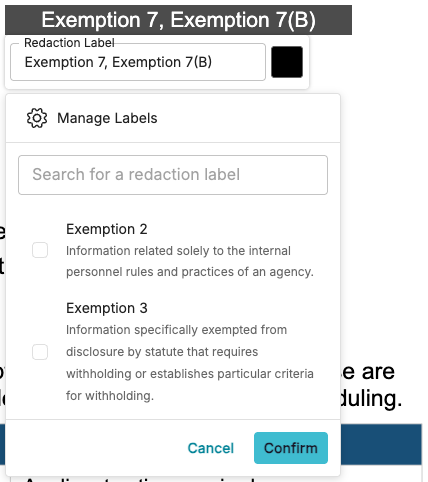
Learn more: Redacting Document Text
Justification field
Add a justification to any of your redactions, giving reviewers a clear, documented reason for each redaction. This makes it easier to defend withholdings if challenged, and helps other reviewers or attorneys stay consistent across a large document set.
.png)
A list of redaction justifications can also be downloaded through the Redaction Schedule report, which displays redaction labels, descriptions and justifications alongside their Bates or Document Number IDs.
.png)
Learn more: Redacting Document Text
Frequent redaction labels list
Right-click over any reaction and click Frequent redaction labels to display a list of your top redactions by usage. These redactions dynamically update based on an individual user’s most frequent redactions – including the redaction color – reducing clicks and speeding up redaction workflows.
.png)
The frequent redaction labels list updates based on the below parameters:
The lists changes based on the number of times you use the same redaction in a single project. Bulk redactions will not influence the frequent redaction labels list.
Frequent redaction labels are different in each project, since projects can vary in purpose and scope.
Frequent redaction labels will be stored for 30 days on a running basis, so the list can remain updated to your top redaction labels.
If you change (rename) or delete a redaction label, it will automatically update or disappear in the frequent redaction labels list. (Note that past redactions made with that label will not change).
Learn more: Redacting Document Text
Other fixes and tweaks
Ticket ID | Title | Description | Fix Date (bugs only) |
|---|---|---|---|
CREEP-11545 | Spreadsheet Viewer as default for spreadsheet files | Spreadsheet files (.xlsx, .xls, .csv) now open in the spreadsheet viewer by default instead of the PDF viewer for easier review. | - |
LGKPROC-4117 | Duplicate tags not updated after overlay | Fixed an issue where overlaying a new image on an original didn't update tags on its duplicates, causing the duplicates to display "No Preview" instead of the new image. | 7-16-2026 |
CREEP-12154 | Customize tag order not implementing | Fixed an issue where, when trying to reorder tags using the “Customize tag order” button, the changes are not saved even though the application displays a "successful" prompt. | 7-28-2026 |
CREEP-12140 | "Has Notes" tag update delay | Fixed a bug where the "Has Notes" tag didn't update on the search page right after adding notes. The tag now updates immediately, no refresh needed. | 7-9-2026 |
CREEP-12106 | Tag modal shows stale tag status | Fixed a bug where a document’s tag status did not dynamically update in the tag modal when changing it from the search screen until refreshing the page. | 7-3-2026 |